

Where things are
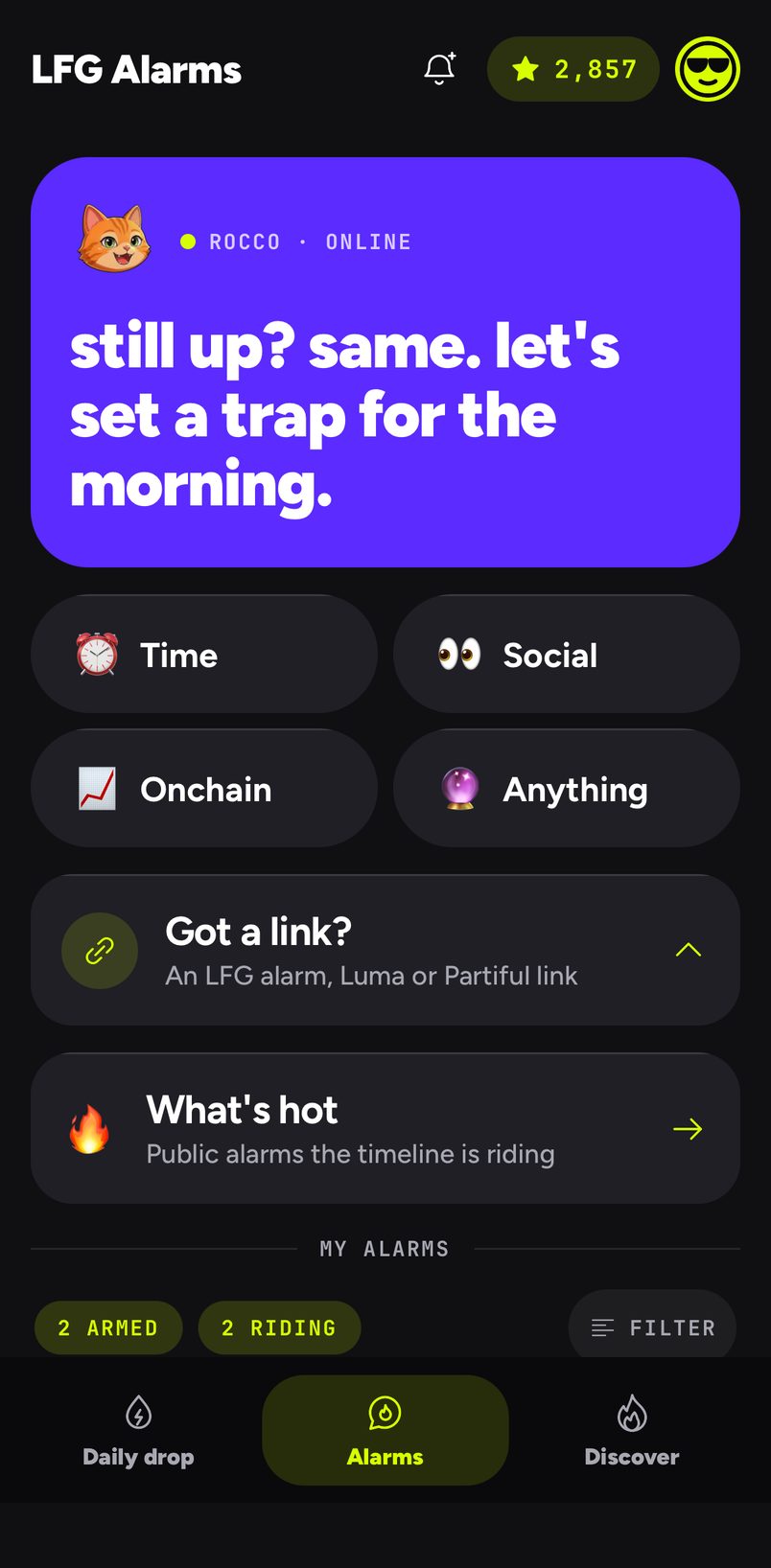
The app has three tabs along the bottom:
- Daily drop is where the app opens. What rang, who got up and the wake boards live here, with what is coming up in the next seven days.
- Alarms is your list, sorted into Coming up, Watching and Expired, with the place to make a new alarm at the top.
- Discover is where public alarms are, for riding.
Settings (your picture, top right) holds your friends and groups, the chaos level and the checks that make sure your phone can ring.
Make an alarm
- On Alarms, tap one of the four chips: ⏰ Time, 👀 Social, 📈 Onchain or 🔮 Anything. Or tap Got a link? to paste a Luma or Partiful invite.
- Rocco asks what he needs in a short chat: the time, the account, the token. Answer with the chips or type.
- Make it social is off by default, so the alarm is just for you. Switch it on to share it: Friends is picked first, or pick Public so anyone can ride it and it shows in Discover. A time alarm also asks its Time zone here.
- Tap Arm it (on a post or trades alarm, That's it; on an event, Create alarm). Rocco says the trigger is locked in.
- Tap Pick the vibe to choose how it sounds and looks, or Done to keep what Rocco picked.
Each type has its own page: time, events, posts, prices, trades and anything.
An example: a flight tomorrow
Your flight boards at 9:40 and you need to leave by 7:00.
- Tap ⏰ Time, then Just once.
- Set the clock to 6:15 and tap AM, then tomorrow.
- Leave Make it social off, and tap Arm it.
- Tap Pick the vibe, choose a siren, and in Creator's note write "Passport is in the blue bag".
Share it
When you save a shared alarm, the app shows its link with Copy link and Share. Share makes a picture of the alarm you can post anywhere. Everyone who taps the link and joins rings with you. For a friends alarm you choose how people get in: Anyone with the link rides or I approve each one. See Sharing and reach.
When it rings
The ring screen shows the alarm's words, its picture and how many people are riding. Tap I'm up I'm up on Android, or the answer button on iPhone (it says I'm up or a word that fits the alarm, like Let's go), and the call to action link opens if the alarm has one. Snooze if you need to, and Rocco has something to say about that. Then the wake board fills in.
Common mistakes
- Expecting a shared alarm by default. Make it social starts off. Switch it on before you arm, or open the alarm later and share it from there.
- Arming a time that has passed. A one-off time earlier than now cannot be armed today; move it to tomorrow.
- Changing an alarm after friends joined. Once a second person rides it, it is sealed. See Editing and deleting.