

Add friends
- Open Settings (your picture, top right) and tap Friends.
- Type a username in Search a username and send a request, or tap Invite friends to send your invite link to someone who is not on LFG Alarm yet.
- When they accept, they appear under Your people. Requests waiting on you show on the Friends row in Settings.
Friends are two-way: both of you agree. Being friends does not let anyone into your alarms on its own. Each alarm has its own list of who can ride it. See Sharing and reach.
Make a group
- In Settings > Friends, switch to the Groups tab.
- Tap Create a group.
- Under Name, type one (for example "Golf"), and pick an Emoji.
- Under People, tap Add people, tick the friends to add, and tap Add (it shows how many you picked).
- Tap Save.
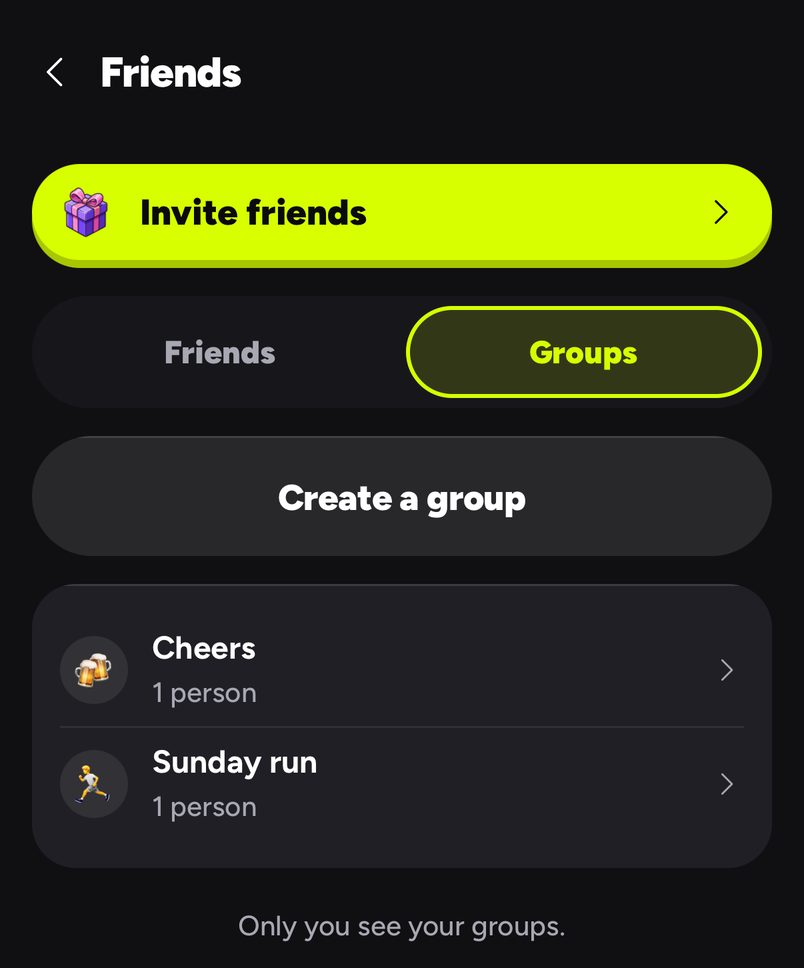
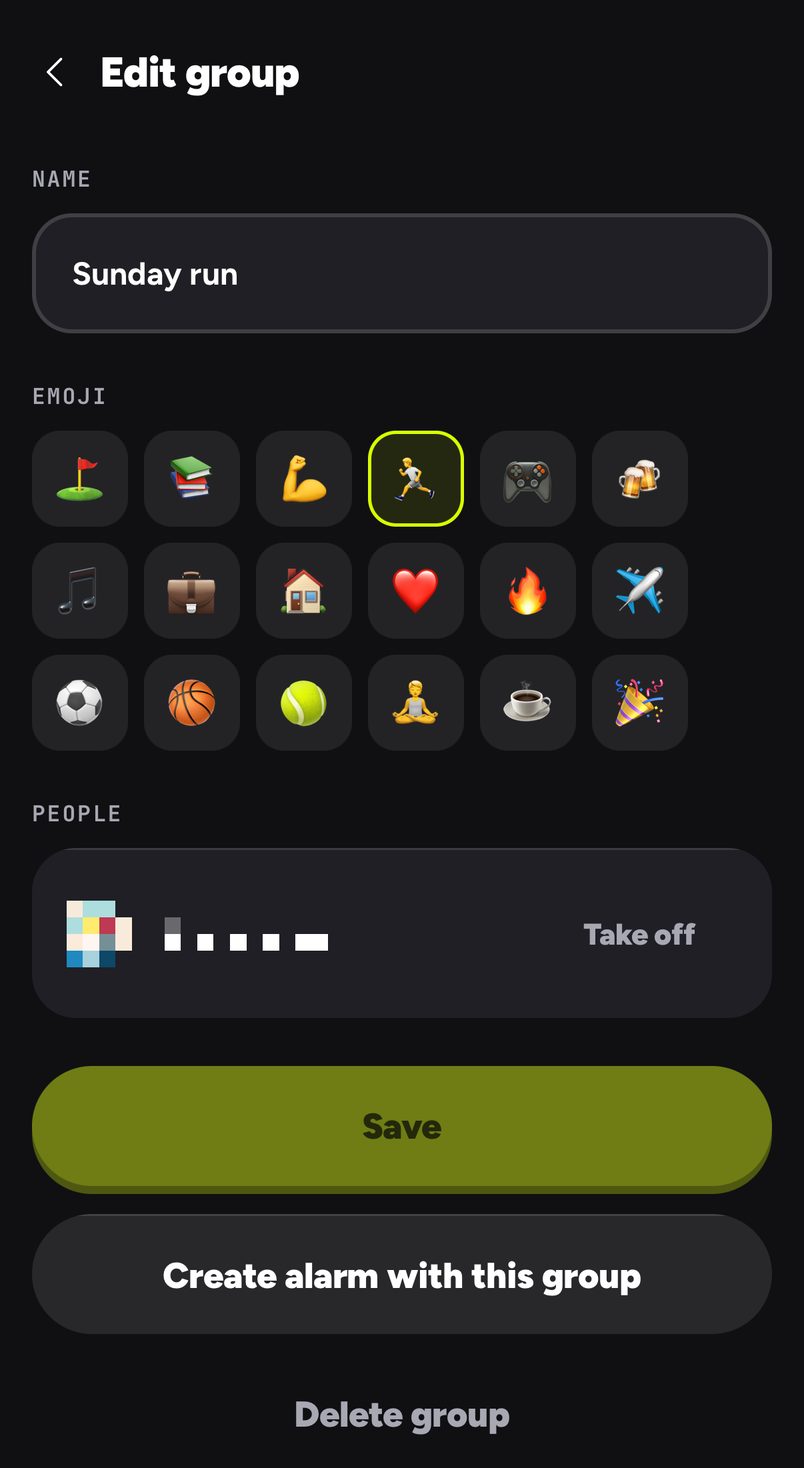
Only you see your groups. Nobody is told they are in one, and the people in a group never see each other through it. If you unfriend someone, they drop out of your groups.
To change a group, open it with the arrow on its row and edit the name, the emoji or the people (Take off removes one person). Delete group, or holding the group's row, removes the list only; the people in it stay your friends.
Make an alarm with people
There are three ways in, all from Settings > Friends:
- One friend: tap Create alarm on their row.
- A few friends: hold a friend to start picking, tap the others, then tap Create alarm with and the number you picked. Unselect lets go.
- A group: tap Create alarm on its row, or open it and tap Create alarm with this group.
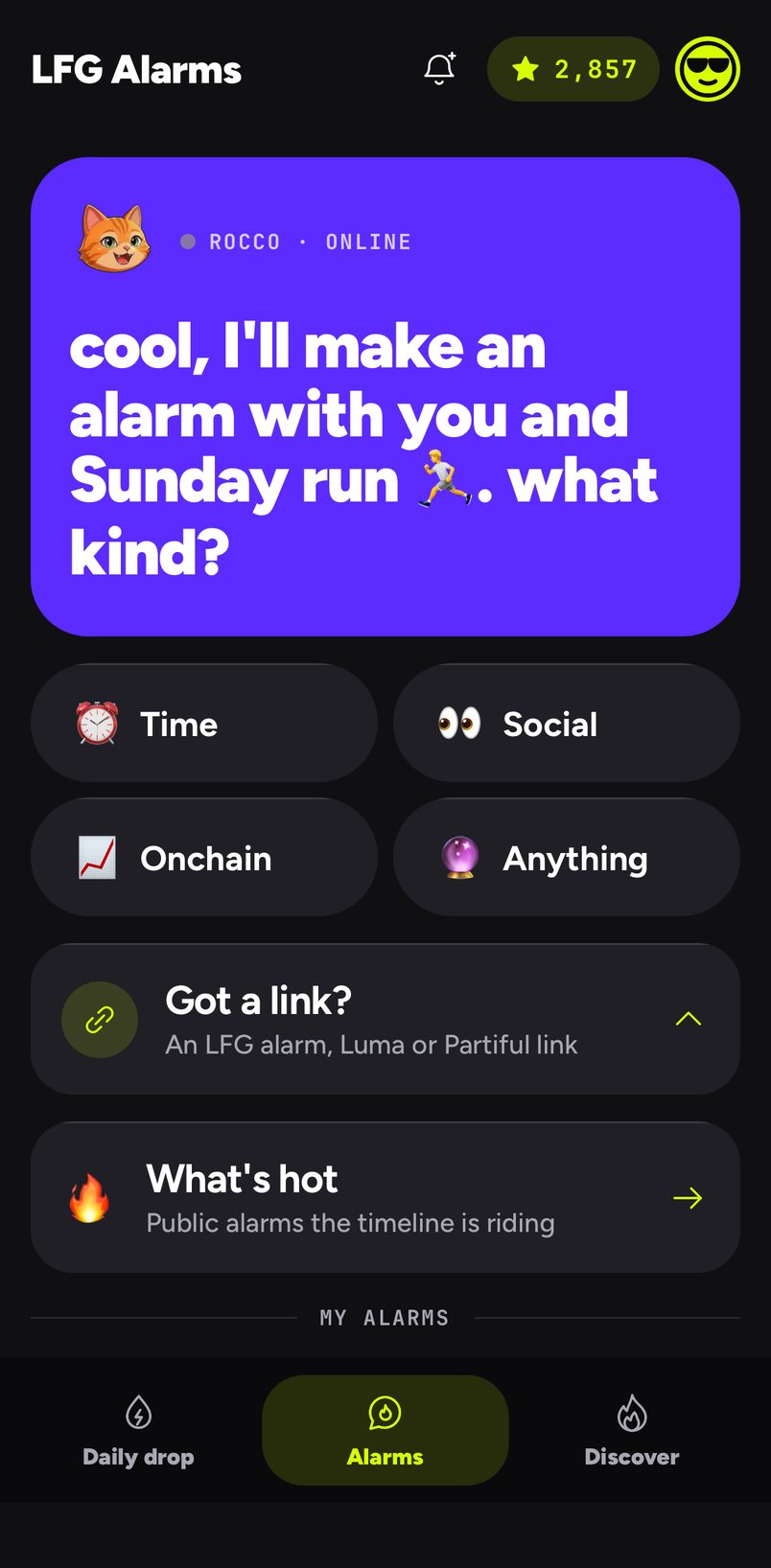
You then pick the kind of alarm as usual (a time, a post, a price, anything). Rocco opens with who it is with, for example "cool, I'll make an alarm with you and Golf ⛳. what kind?", and the alarm starts with Make it social on, set to Friends, with those people already on its list. They get it in their notifications and tap to ride along.
Add a group to an alarm you already made
Open the alarm's reach (who can open it), choose I approve each one under How people get in, then tap Pick from your friends. Your friends and your groups are there to tap; pick a whole group and everyone in it is added at once. Add by username or email still works for anyone else. People you add yourself skip the asking.
A group is only a shortcut. It fills the alarm's list with the people in it at that moment. Adding someone to the group later does not add them to alarms you already made.
Unfriend, block or report
Each friend's row has a menu (the three dots) with Unfriend, Block and Report:
- Unfriend takes them off your friends and out of your groups. You can add each other again later.
- Block asks first. They will not see your alarms or comments and cannot add you, and it unfriends them too.
- Report asks what is wrong (spam or a scam, harassment, pretending to be someone else, an offensive name or picture), takes an optional note, and can block them in the same step.
To unblock someone, open Settings > Block list and tap Unblock. You can also block someone from the report sheet on their alarm, or from the menu on their comment.
An example
Sam plays golf with the same four friends most Sundays. He makes a group "Golf ⛳" once. Each Friday he opens it, taps Create alarm with this group, picks ⏰ Time, sets Sunday 6:30am, and writes the tee time in the creator's note. All four get the alarm in their notifications and tap to ride.
From your AI agent
If you use an AI agent with the LFG Alarm connector, it can add a whole group to an alarm by the group's name. It lists who is in it and adds nobody until you say yes.
On the website
Groups work the same way on lfg.gm when you are signed in: Settings > Friends has the same Friends and Groups tabs, the same menu on each friend, and an alarm made on the site rings on your phone too.