

Before you start
- Get the LFG Alarm app on your phone from Google Play or the App Store, and sign in. ClickUp triggers the alarm; your phone does the ringing.
- An LFG Alarm plan that includes Anything alarms. See the plans on lfg.gm.
- A ClickUp plan with webhook Automations. ClickUp lists Call webhook on Business, Business Plus and Enterprise.
Make the alarm
- In LFG Alarm, on Alarms, tap 🔮 Anything.
- Name it for what it means, for example "Urgent task" or "Launch blocked". The ring screen shows the alarm's name and nothing from ClickUp, so pick a name that says what happened.
- Pick a Cooldown: how long it stays quiet after it rings, from 1 minute to 1 hour. That way a burst of changes rings once, not ten times.
- Share it with the people who should hear it, and tap Arm it.
- On the link card, tap Copy. It starts with
https://api.lfg.gm/horn/. Keep it private: anyone with it can ring the alarm.
Build the Automation
- In a Space, Folder or List, click the robot icon in the upper right, then Create Automation.
- Pick a trigger, for example Priority changed, with To set to Urgent.
- For the action, search for webhook and choose Call webhook (not the Legacy one), then Create Webhook.
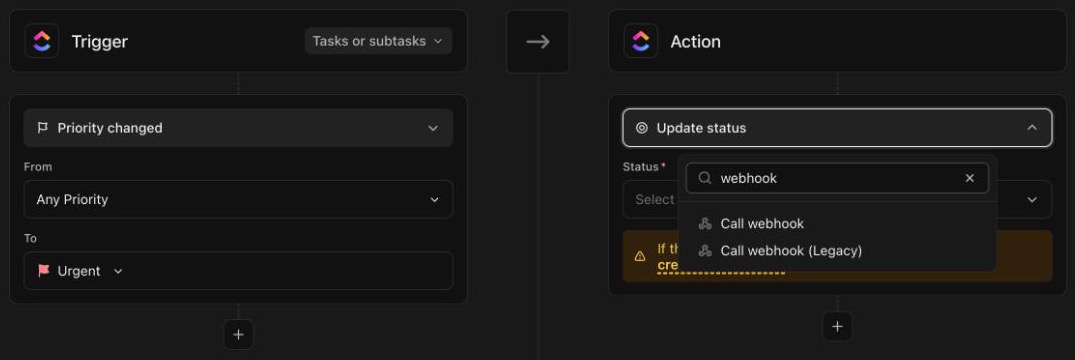
- Give it a title ("LFG Alarm: Urgent task") and paste the alarm's link as the URL. Leave the headers and URL parameters as they are.
- Click Test webhook. ClickUp sends a test, so your phone rings: that is how you know it works.
- Click Create webhook, then Create.
What it does: when the trigger fires, ClickUp sends one request to the alarm's link and every phone on the alarm rings. LFG Alarm ignores what ClickUp sends, so no task details reach the ring screen. To ring for something else, just change the trigger:
- Status changes, to Blocked or Ready for review.
- Due date arrives, for the deadline nobody can miss. If the task has no due time, ClickUp fires it at 4am local time on that day.
- Task or subtask created, in a List where every new task is urgent, like an on-call queue.
You'll find your saved webhooks under the robot icon, Manage Automations, Webhooks. You can test one again or switch it off there.
Let ClickUp's AI use LFG Alarm
ClickUp can connect to outside MCP servers, and LFG Alarm has one at https://mcp.lfg.gm.
- In ClickUp, open App Center, then Custom MCP, and choose Add New.
- Enter
https://mcp.lfg.gmand choose OAuth, then sign in to LFG Alarm and tap Allow. Or choose API key and paste a personal key from the app's Settings, AI apps and keys. - Add it Just for me, or For all members if you are an owner or admin.
- On a Super Agent, open its profile, then Tools, Add tools, and pick LFG Alarm.
Then ask ClickUp Brain or the agent in plain words: "set an alarm for 30 minutes before this task is due and add the assignee".
Let your AI set it up
Have your AI agent make it.
Paste this into ChatGPT, Claude, Grok or any AI agent that can add a connector, not into the LFG Alarm app. The setup steps come with it: get the LFG Alarm app, connect it to your agent once, and your agent makes the alarm in your account.
Use LFG Alarm to make an Anything alarm called "Urgent task" with 10 minutes of quiet time, add my teammate [their LFG Alarm username], and give me its link. Then tell me how to add it to a ClickUp Automation with the Call webhook action when a task's priority changes to Urgent.
Already have the LFG Alarm app and connected it to your AI agent?
Why it works. One request makes and shares the alarm, and your AI walks you through the Automation. Connect LFG Alarm to your AI app first: see [AI agents](/agents).
If it does not work
- Call webhook is missing, or picking it does nothing. Your ClickUp plan may not include webhook Automations; ClickUp lists them from Business up.
- The test fails. Copy the link again from the alarm's link card: it must start with
https://api.lfg.gm/horn/. - It fired but nobody's phone rang. The ring may have fallen inside the alarm's cooldown, or the people on it have not joined yet.
- Automations stopped this month. ClickUp pauses a Workspace's Automations once it uses up its monthly actions.
- Still stuck? Write to us from the support page.
Learn more
- The Anything alarm
- Ring your team's phones from monday.com
- How to make Airtable ring your phone
- Connect LFG Alarm to your AI app
Sources and further reading
- ClickUp help: Create a task webhook Automation
- ClickUp help: Automations feature availability and limits
- ClickUp help: Connect an MCP server to your Workspace
LFG Alarm is not affiliated with ClickUp.