

Before you start
- Get the LFG Alarm app on your phone from Google Play or the App Store, and sign in. Airtable triggers the alarm; your phone does the ringing.
- An LFG Alarm plan that includes Anything alarms. See the plans on lfg.gm.
- An Airtable plan with scripts in automations. Airtable marks the Run script action as Team and up.
Make the alarm
- In LFG Alarm, on Alarms, tap 🔮 Anything.
- Name it for what it means, for example "Big deal" or "Urgent ticket". The ring screen shows the alarm's name and nothing from Airtable, so pick a name that says what happened.
- Pick a Cooldown: how long it stays quiet after it rings, from 1 minute to 1 hour. That way a burst of matching records rings once, not ten times.
- Share it with the people who should hear it, and tap Arm it.
- On the link card, tap Copy. It starts with
https://api.lfg.gm/horn/. Keep it private: anyone with it can ring the alarm.
Build the automation
- In your base, open Automations, then Create automation.
- Pick a trigger, for example When a record matches conditions, with Deal size greater than 10,000.
- Click Add advanced logic or action and choose Run script.
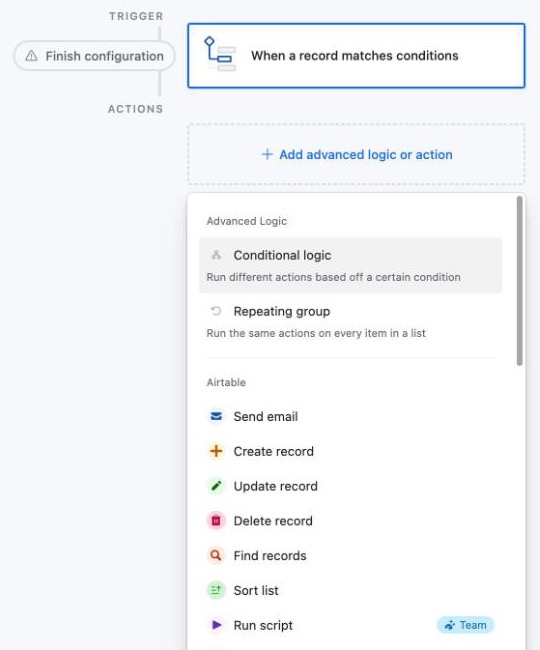
- In the script's left panel, add an input variable named
ringLinkand paste the alarm's link as its value. - Paste this script:
// Rings an LFG alarm on everyone's phone. The link comes from the input variable ringLink.
const { ringLink } = input.config();
const res = await fetch(ringLink, { method: 'POST' });
const body = await res.json();
output.set('rang', res.status === 200);
output.set('peopleWoken', body.wokeUp ?? 0);
- Press Test, check your phone rings, then turn the automation on.
What it does: when a record matches, the script sends one request to the alarm's link and every phone on the alarm rings. It also gives later steps two values: rang, which is false if the alarm had just rung and skipped this one, and peopleWoken, the number of phones that rang. To ring for something else, just change the trigger: a status set to Urgent, a date that arrives today, or a new form submission.
Rocco's finds as new rows
When Rocco, LFG's agent, is watching something for you, he can send everything he finds to a web address. Point it at Airtable and you get a running log of his finds.
- In Airtable, make an automation with the trigger When webhook received, and copy its URL.
- In LFG Alarm, open the alarm, choose Send alerts to, and paste that URL.
- Each alert arrives with
alarm,beacon(what he found),atandbeaconUrl. Add a Create record action and match each one to a field in your table.
Let your AI set it up
Have your AI agent make it.
Paste this into ChatGPT, Claude, Grok or any AI agent that can add a connector, not into the LFG Alarm app. The setup steps come with it: get the LFG Alarm app, connect it to your agent once, and your agent makes the alarm in your account.
Use LFG Alarm to make an Anything alarm called "Big deal" with 10 minutes of quiet time, add my teammate [their LFG Alarm username], and give me its link. Then write me an Airtable automation script that rings it when a record's Deal size is over 10,000.
Already have the LFG Alarm app and connected it to your AI agent?
Why it works. One request makes and shares the alarm, and your AI writes the script with the link in it. Connect LFG Alarm to your AI app first: see [AI agents](/agents).
If it does not work
- The script fails on fetch. Check
ringLinkis set and the link starts withhttps://api.lfg.gm/horn/. - rang is false. The alarm had just rung, so it skipped this one. Wait for the cooldown to pass, or make it shorter.
- It rang but a teammate heard nothing. They have to join the alarm first: send them its link.
- Still stuck? Write to us from the support page.
Learn more
- The Anything alarm
- Ring your team's phones from monday.com
- How to make Zapier ring your phone
- For developers
Sources and further reading
LFG Alarm is not affiliated with Airtable.